
"Someone's just cancelled ten days over Christmas. Who was waiting for that again?" Then it's the scroll through the waitlist, the phone calls, the voicemails, and the run sitting empty while you wait to hear back. By the time someone says yes, the person who wanted it most has made other plans.
Automatic waitlist offers do that part for you. When space frees up, KennelBooker works out who on your waitlist it suits best, holds the space for them on a provisional booking, and sends them an email with a Yes please button. You still confirm every booking.
What it does
It watches for space freeing up: a cancelled booking, a stay made shorter, a booking moved to another run, or a daycare booking removed or moved. Within about 15 minutes it checks the waitlist entries that want those dates, picks the best one, and makes the offer.
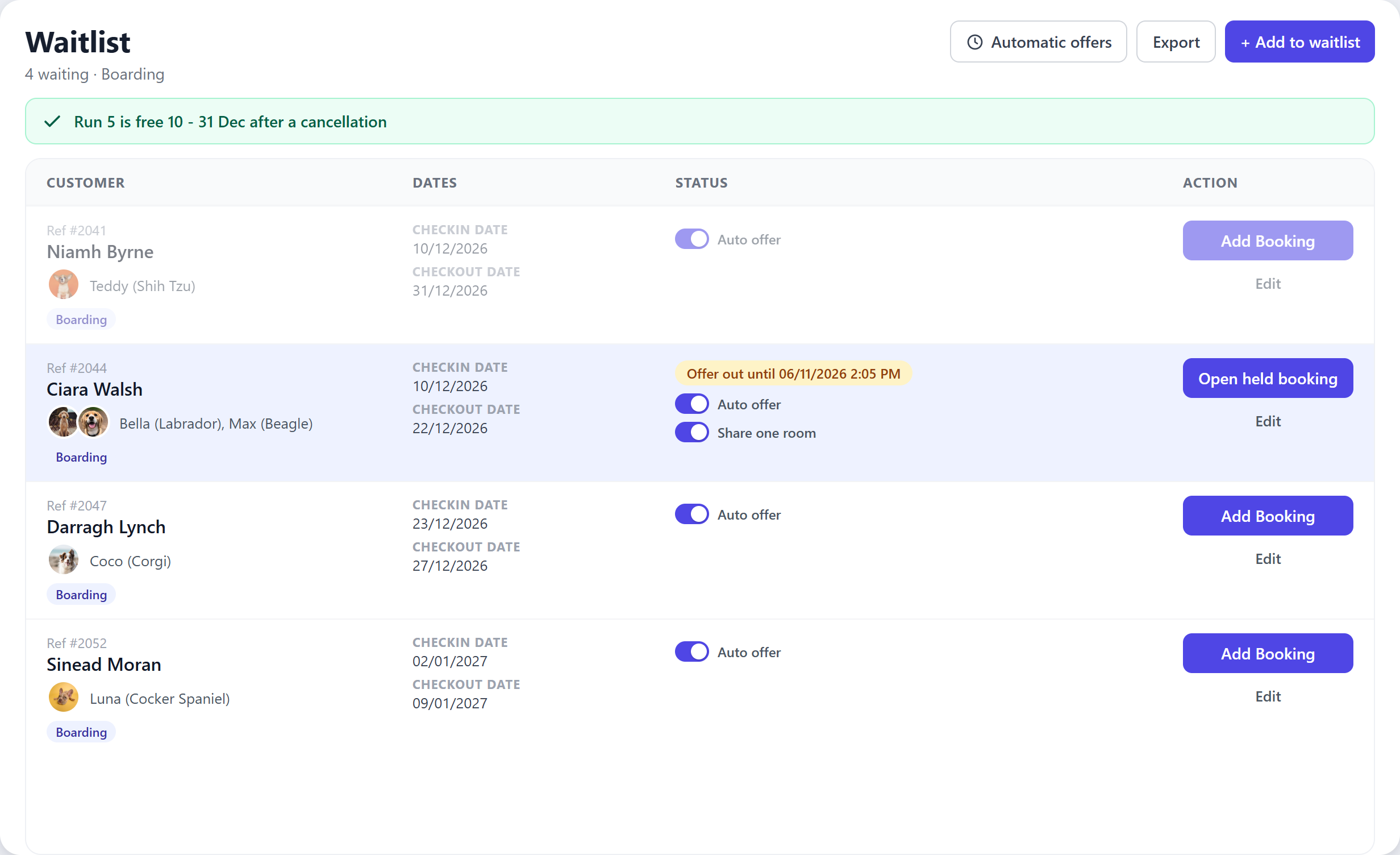
For boarding, the entry worth the most goes first, counted in pet-nights: nights times pets. Say a run frees up for 21 nights over Christmas. One customer wants it for one dog for all 21 nights, which is 21 pet-nights. Another wants it for two dogs for 12 nights, which is 24. The two dogs get the offer, and the 9 nights left over are offered on to the next entry that fits them. If two entries are worth the same, whoever joined the waitlist first wins. Of the free runs, it picks the one that fits the stay most tightly, so your longer gaps stay open for longer stays.
For daycare, it works per day: the customer who has waited longest for that day gets the place, as long as there is room in your play areas.
What your customer sees
They get an email saying a space has opened up, with the dates, the time you're holding it until, and two buttons: Yes please, book it and No thanks. One tap on their phone and they're done. You can change the wording of the email in your email templates, where it's called Waitlist Space Offer.
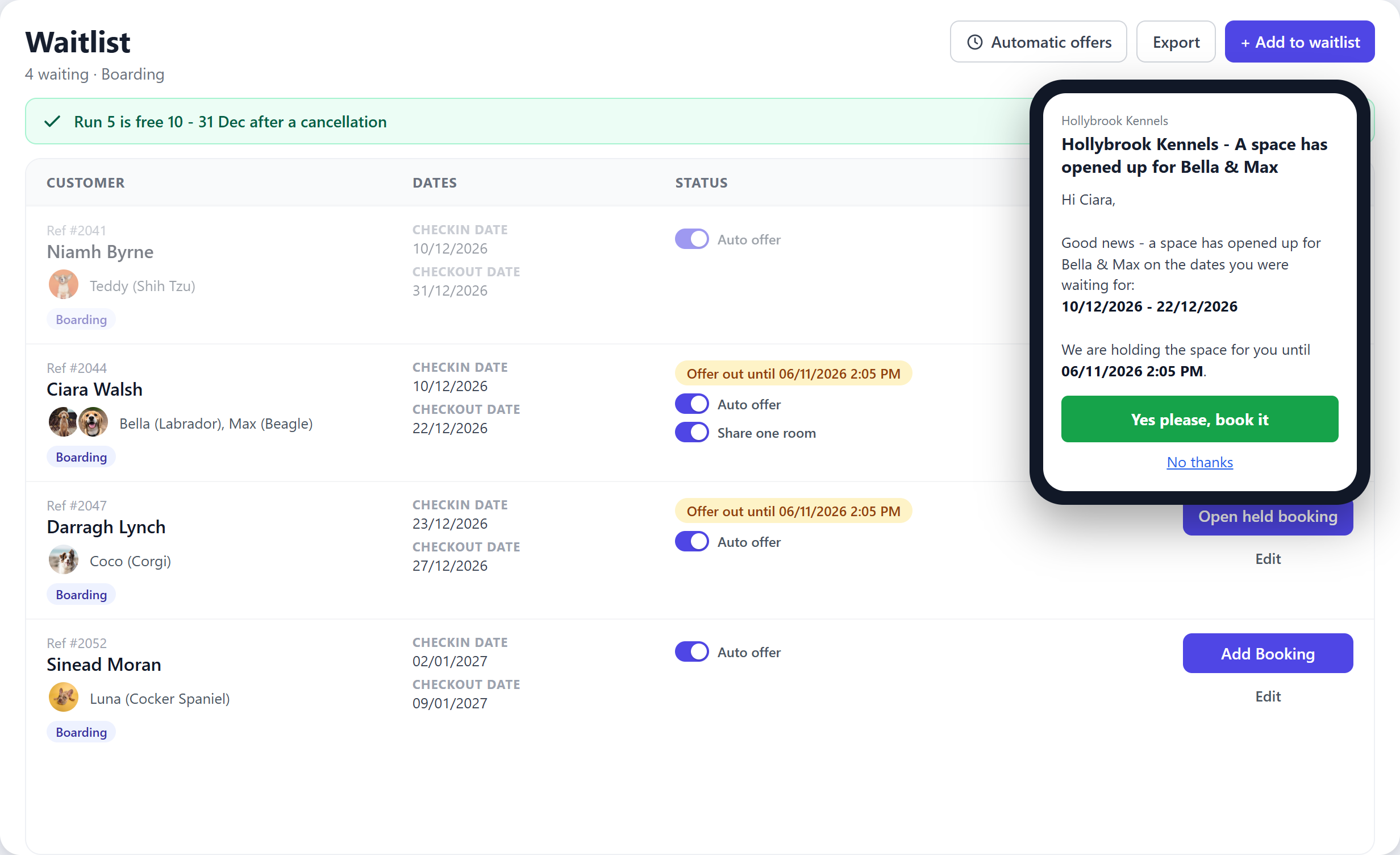
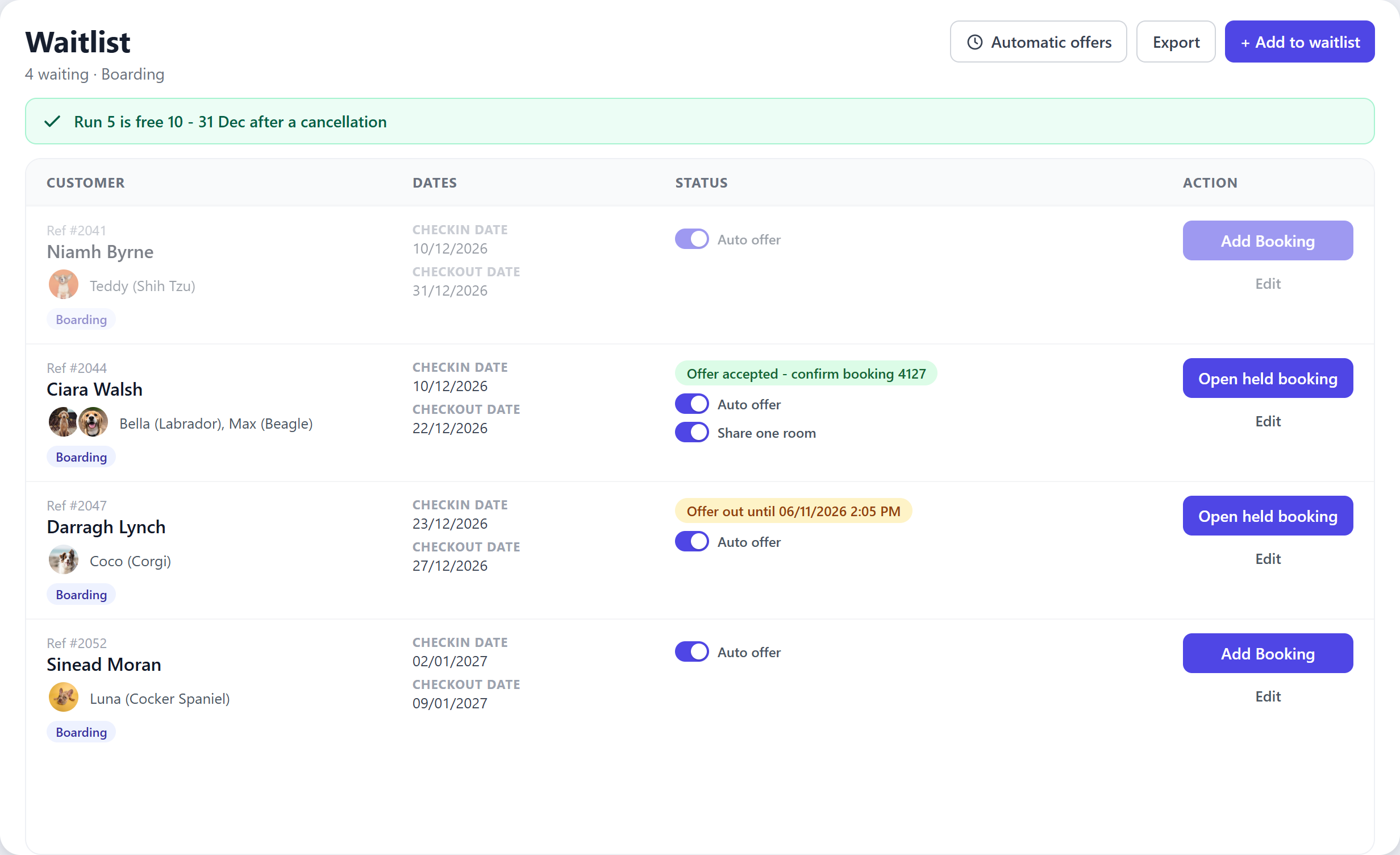
If they say yes, the booking stays provisional, marked Offer accepted, and you confirm it the way you always do. If they say no, or don't answer in time, the held booking is cancelled and the space goes to the next best entry. You get a copy of every offer email, and a note when someone accepts, declines or doesn't reply, including who the space went to next.
How to set it up
- Go to Settings, then Waitlist Offers.
- Switch on Offer freed boarding spaces automatically, daycare, or both, and choose how long customers have to reply. The default is 24 hours for boarding and 60 minutes for daycare.
- Check the Copy offers to address. Leave it blank to use your reply-to address.
- Save. The first time you switch it on, Auto offer is switched off on everyone already on your waitlist, so nobody is offered a space without you choosing.
- On the Waitlist page, switch Auto offer on for the entries you want included. New entries have it on already.
When the date is close, the reply window shrinks so it is never more than half the time left. That way there is still time to offer the space to someone else if the first customer doesn't answer.
What it won't do
- Split one booking across more than one room. An entry with two or more pets is only offered when you have ticked Share one room on it.
- Offer entries with different pet types, such as a dog and a cat.
- Confirm bookings for you. A person always has the final say.
- Offer split stays, or daycare when your daycare is booked into rooms rather than play areas.
Every offer is recorded in the booking's audit log: what freed the space, who else was considered, why this customer was chosen and which run was picked. If anyone ever asks why they didn't get the space, the answer is there.
Why we built it
Cancellations are the busiest kind of quiet. The run is empty, the revenue is gone unless you act fast, and acting fast means stopping whatever else you were doing. A waitlist only pays for itself if someone works it, and at peak times there is rarely anyone free to. Now the waitlist works itself, and you stay in charge of who actually gets booked in.
Available on every plan at no extra cost. Find it under Settings, Waitlist Offers. It works with your existing waitlist, so the more entries you keep on it, the more cancellations it can fill. For tips on running the waitlist itself, see our guide to waitlist management for kennels.
Frequently asked questions
How do I fill a cancelled kennel booking from my waitlist?
Switch on automatic offers in Settings, Waitlist Offers. When a booking is cancelled or shortened, KennelBooker finds the best match on your waitlist, holds the space on a provisional booking and emails the customer. They reply with Yes please or No thanks, and you confirm the booking as usual.
Who gets the space if several people are waiting?
For boarding, the entry worth the most gets it first, counted in pet-nights: nights times pets. A tie goes to whoever joined the waitlist first. For daycare, whoever has waited longest for that day gets the place.
How long does the customer have to reply?
You choose: up to 72 hours for boarding and between 15 minutes and 4 hours for daycare. When the date is close, the window shrinks so it is never more than half the time left, and the space can still go to someone else.
Will it book two dogs into separate rooms?
No. One booking always gets one room. An entry with more than one pet is only offered when you have ticked Share one room on it, and entries with different pet types, such as a dog and a cat, are never offered automatically.